Use this guide to familiarize yourself with the main tools and functions inside the CheckFlow Proof Viewer
Navigating the proof viewer
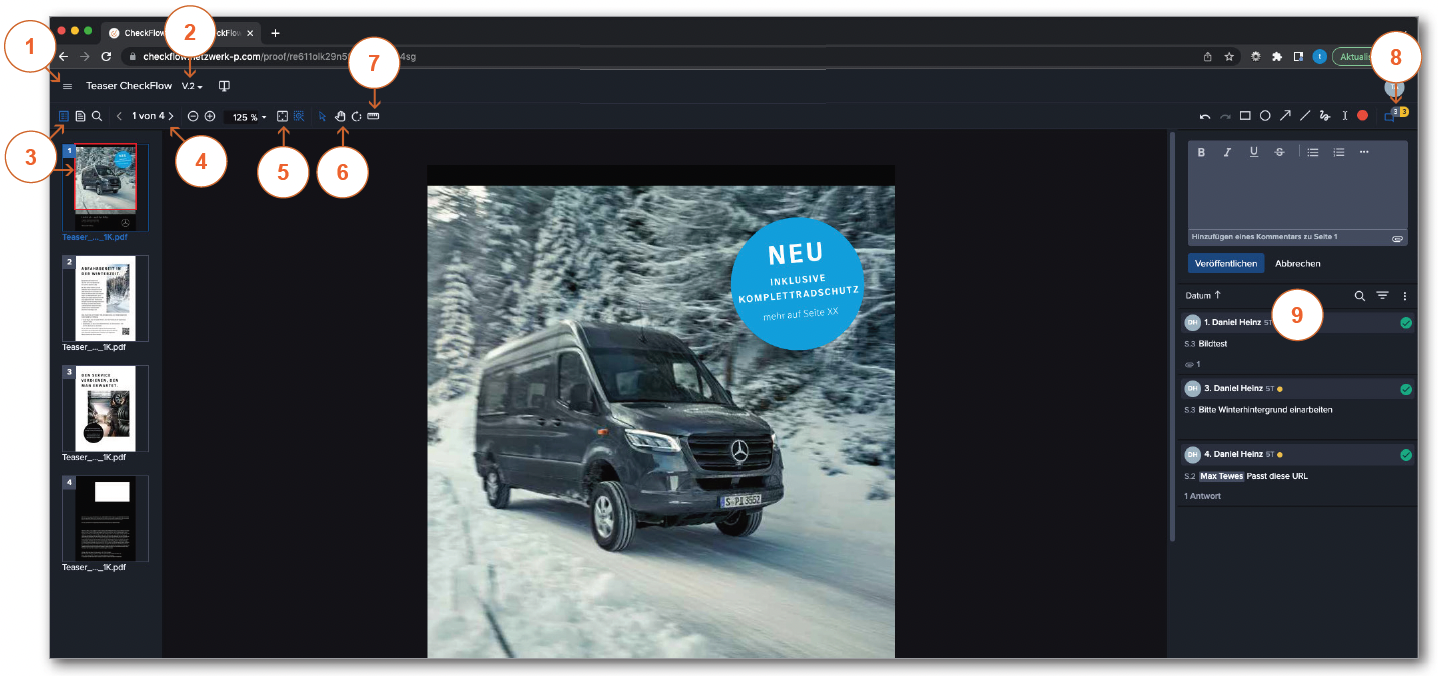
Navigating around the CheckFlow proof viewer made simple:
Sidebar with functions such as Summary of the active proofs, proof details, share function, comment export and the settings
Show/change versions of the proof
Show/hide page thumbnails with Navigator (highlights which part of the proof is currently displayed)
Scroll through proof pages
Fit to window – quick way to fit the proof to window
Pan tool – allows you to pan around the proof
Measuring tool
Show/hide comments
Comment bar
Markup and comments
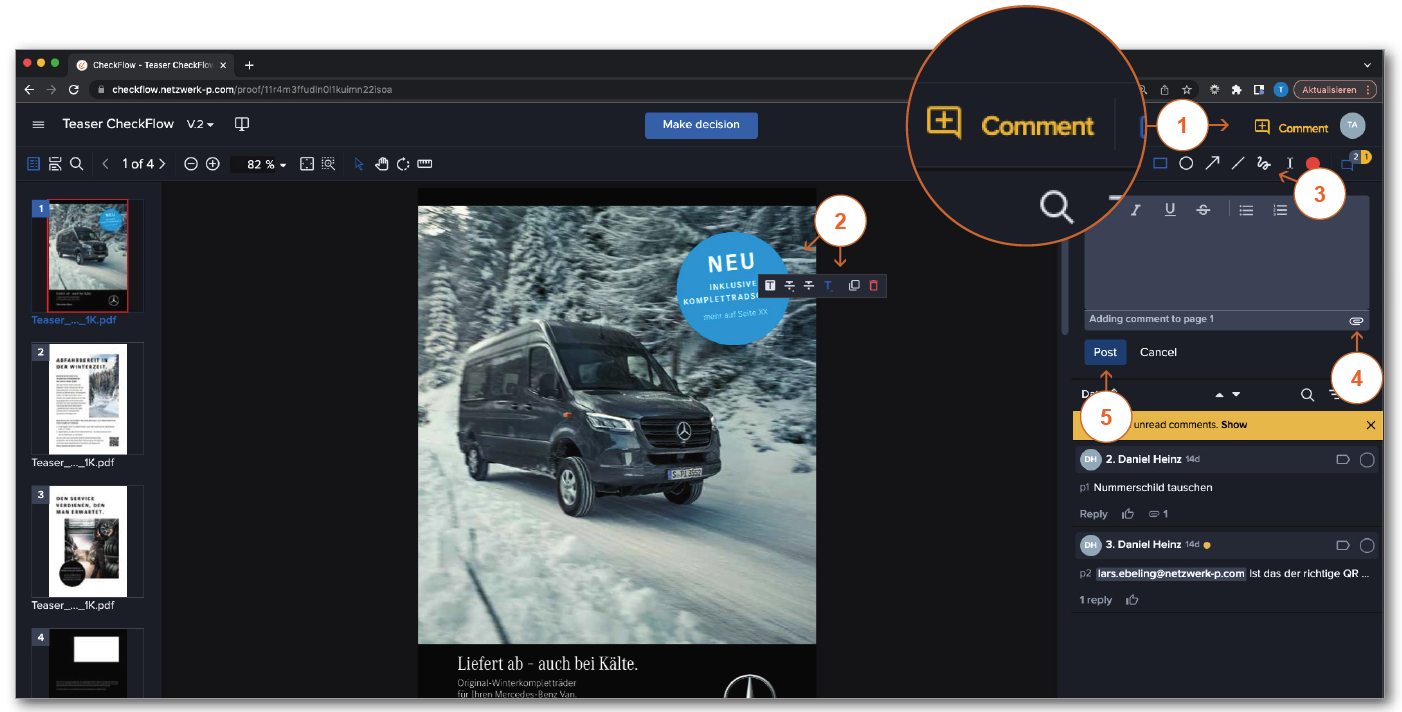
You opened this sample proof in the CheckFlow Proof Viewer. Let’s go ahead and make some comments:
1.
Click on the “Comment” button to write a comment. You can also write a comment directly or mark the content.
The comment mode
must be activated for this.
2.
Select the relevant text and edit it with the desired text tool “Replace”, “Delete” or “Insert”.
3.
Click here to reveal the “markup” tools – now select a tool and draw on the proof.
4.
Add data. Image data or similar can be attached via this symbol. Note: Please ensure sufficient resolution when transferring image material.
5.
Click on the “Save” button to submit your comment.
Completing your review
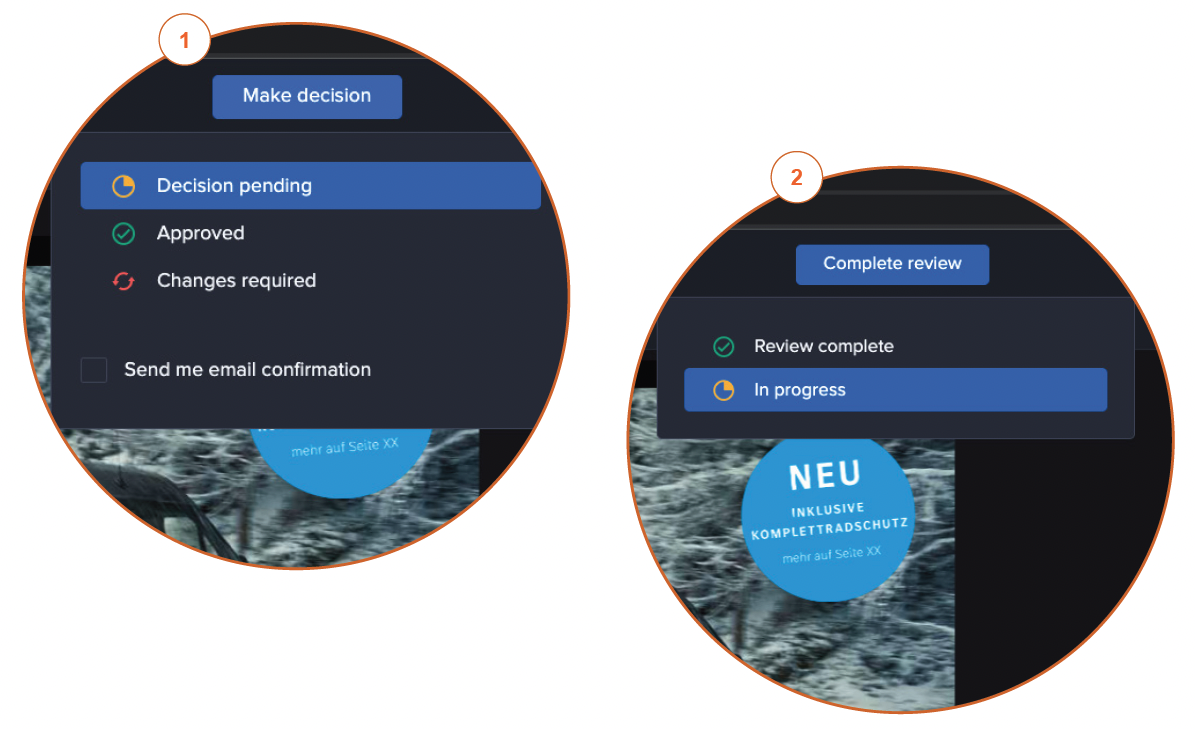
Depending on whether you’ve been asked to make a decision or not, you can complete the review as follows:
Decision makers can submit their decision by clicking the “Submit decision” button & selecting a decision from the drop down list.
Non–decision makers can complete their review by clicking on the “Finish review” button.
Compare versions
Comparing two versions is quick and easy:
Start comparing proofs by clicking on the Versions drop down and selecting “Compare”.
During compare mode you can select what versions to view.
Navigate both proofs at the same time or independently.
CheckFlow can automatically show you the differences in the new version, simply click on the Auto-compare button.
Leave compare mode.
Post Questions & Live Chat
It is very easy to exchange information with colleagues or clarify queries in the tool. Learn how to do it here:
The shortcuts of the colleagues who are currently working on the project appear here.
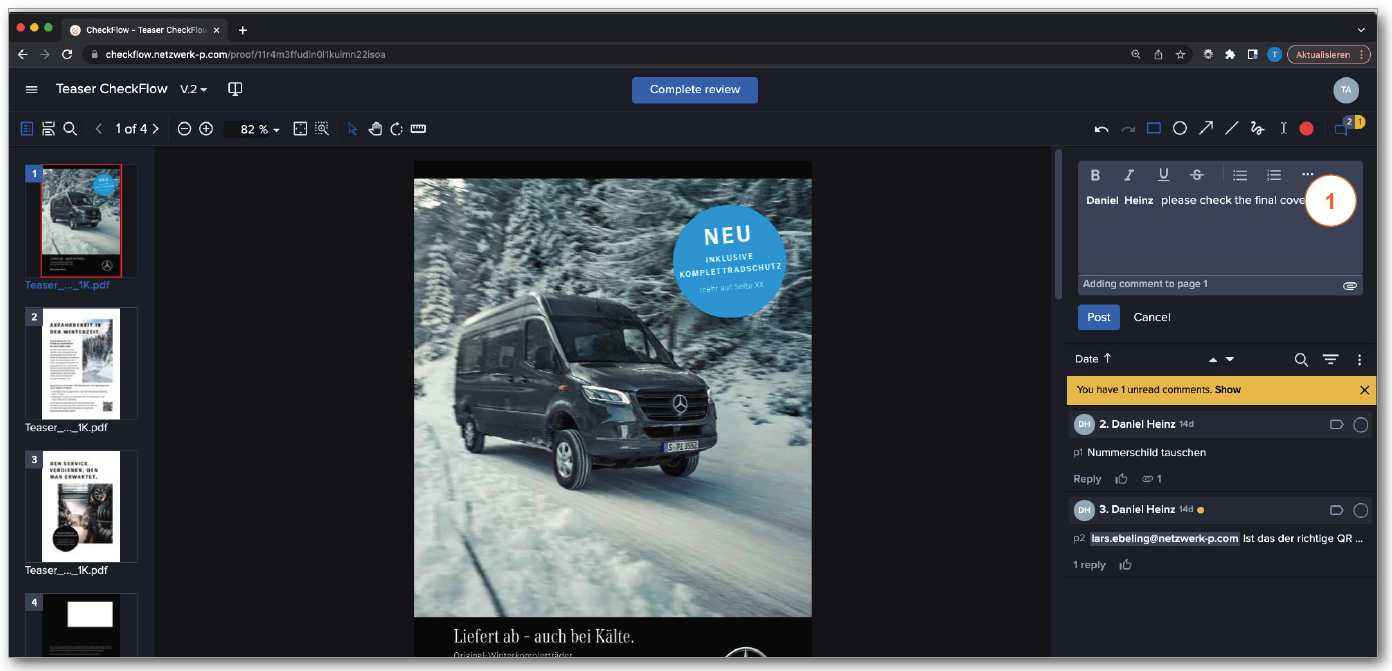
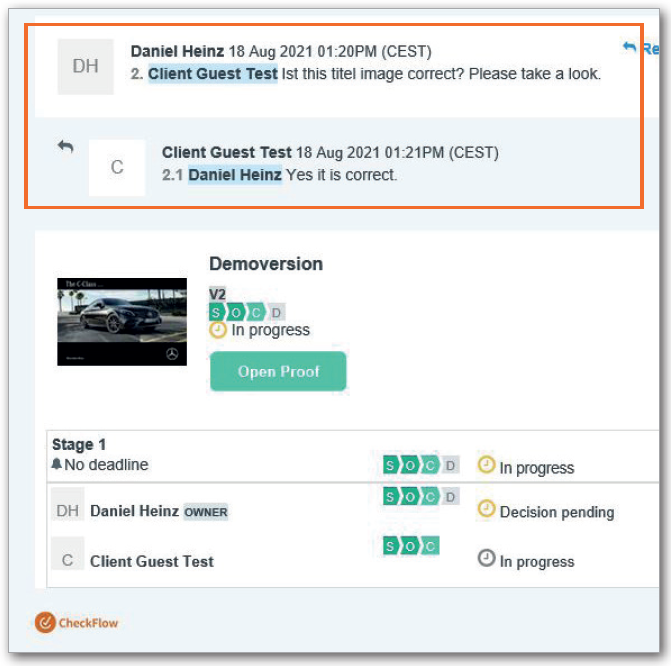
By using the “@” symbol, a conversation with a colleague can be started. The colleague also receives a notification by e–mail with the content of the comment. See the following example:
Example of a Mail notification with a question addressed to you.
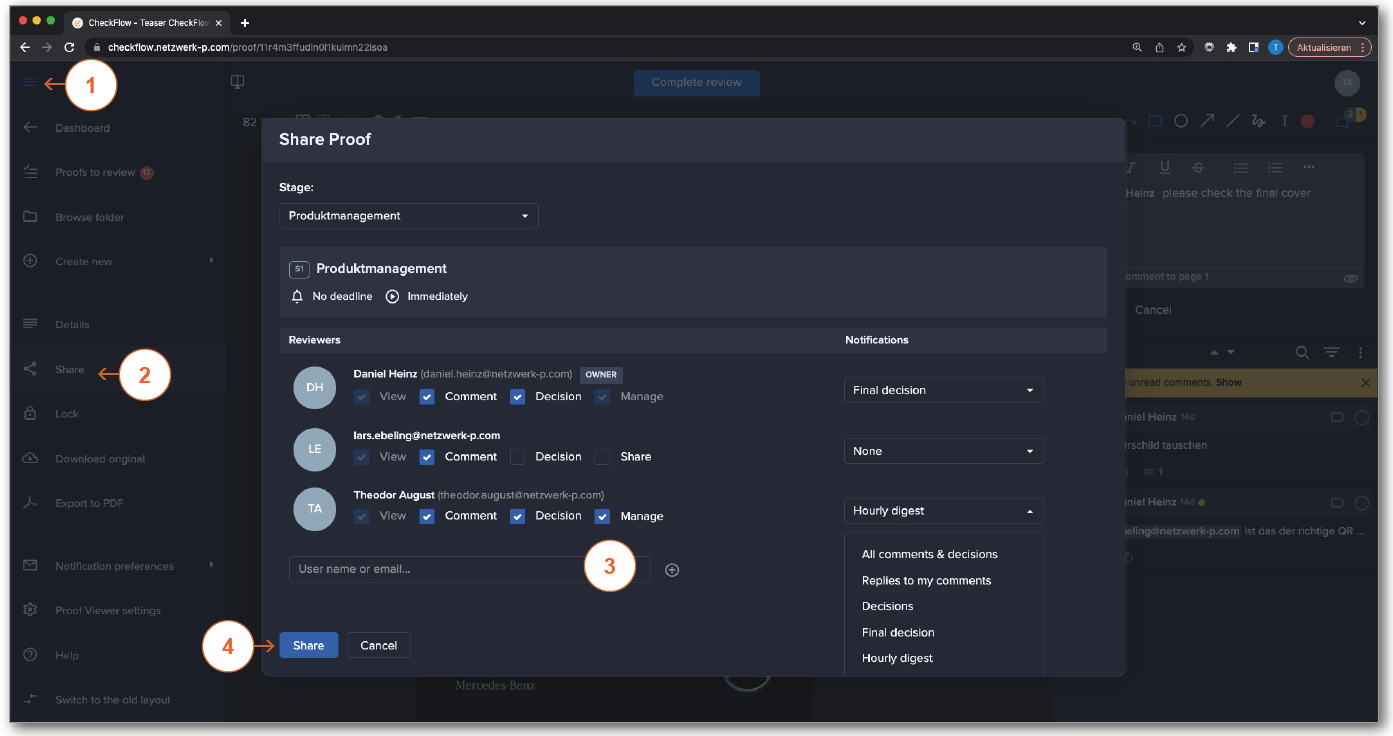
Sharing proofs with colleagues
Add more people to your workflow. (This function is available as an option).
Open the menu.
Click on the “Share” icon.
Add the email addresses of the people you want to invite to the review and approval process and click “Share”. You can add all your users/contacts already listed in your account or add new reviewers.
By confirming the approval, the added users/contacts will receive a mail notification with a link directly to the proof.
Additional assistance
For additional help or if you have any questions about CheckFlow, you can always send us an email to the following address and we will get in touch with you.